Windows
On Windows you can connect Outlook using ActiveSync. You can synchronize:
- Files
- Outlook Calendar
- Outlook Contacts
- Outlook E-mail
Outlook / Windows 10
Note: This guide describes Outlook but this kind of ActiveSync account also works for the Windows 10 Mail, People and Calendar app.
To setup an ActiveSync account take the following steps:
Open Outlook and click “File”.
Then click “Add account”.
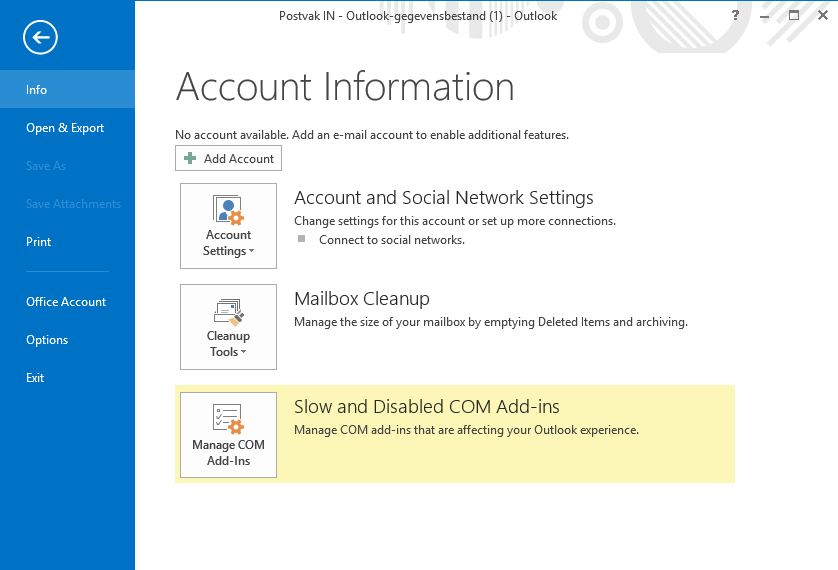
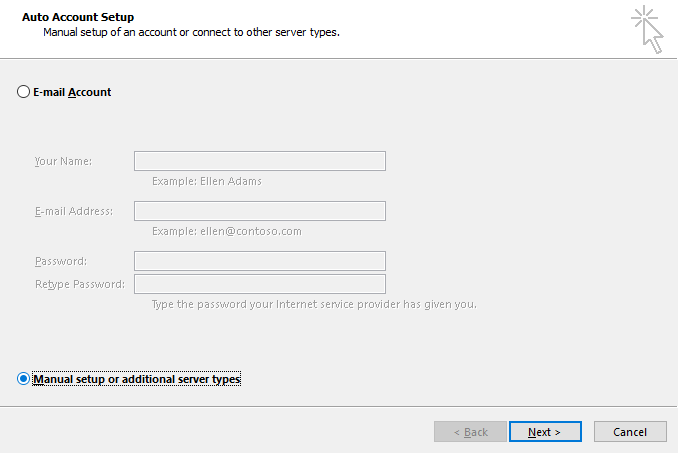
Select “Manual setup” and click “Next”.
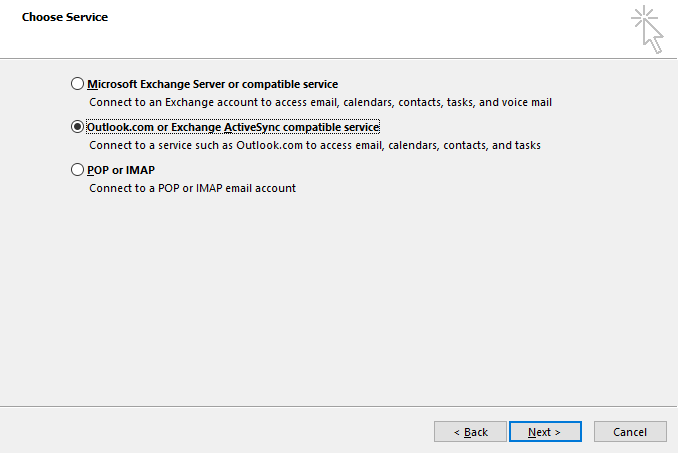
Choose “Outlook.com or Exchange ActiveSync compatible service” and click “Next”.
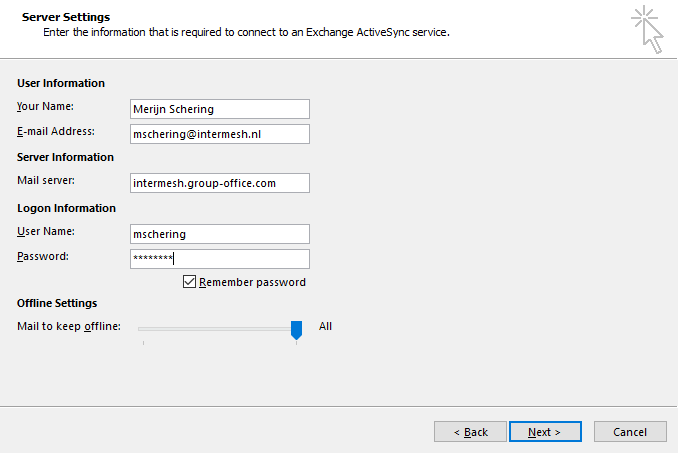
In the next screen you must adjust your server settings. It will prefill the username with the e-mail address and the server name with the domain from your e-mail address. This is most likely incorrect. Please adjust to your Group-Office username and enter the Server hostname. When done click “Next”.
Outlook will test your settings. If all is well you should see the following screen.

Now you must give it some time to sync everything. Then check your contacts, e-mail and calendar for your Group-Office data!
Files
Additionally you can map Group-Office as network drive using WebDAV. With Group-Office Assistant you’ll connect automatically when you click a file in Group-Office.
Click here to download Group-Office Assistant for Windows.
After installing it you can use it as follows:
In Group-Office right click on a file and choose “Open with”.
Select the “Your desktop application (WebDAV) option to use the assistant.
