Installation on Debian or Ubuntu
Core system
Our preferred way of installing is using our Debian packages:
On Debian login as the root server and on Ubuntu become root by running:
sudo -s
Only on Ubuntu make sure the “universe” repository is enabled:
sudo add-apt-repository universe
First add our repository to the package management system.
If you run PHP 7.0 (Debian 9) run:
echo "deb http://repo.group-office.com/ 63-php-70 main" > /etc/apt/sources.list.d/groupoffice.list
If you run PHP 7.1 or higher (Ubuntu 18.04+) add:
echo "deb http://repo.group-office.com/ 63-php-71 main" > /etc/apt/sources.list.d/groupoffice.list
Make sure “dirmngr” is installed for adding the public key:
apt-get install dirmngr
Add our public key:
apt-key adv --recv-keys --keyserver pool.sks-keyservers.net 0758838B
Update APT:
apt-get update
Then install Group-Office by running:
apt-get install groupoffice
If you purchased Group-Office Professional licenses then make sure the Ioncube loader is installed and place the license files in “/usr/share/groupoffice/”. For example “/usr/share/groupoffice/groupoffice-pro-6.3-license.txt”.
Then visit http://yourserver/groupoffice and the installer should appear:
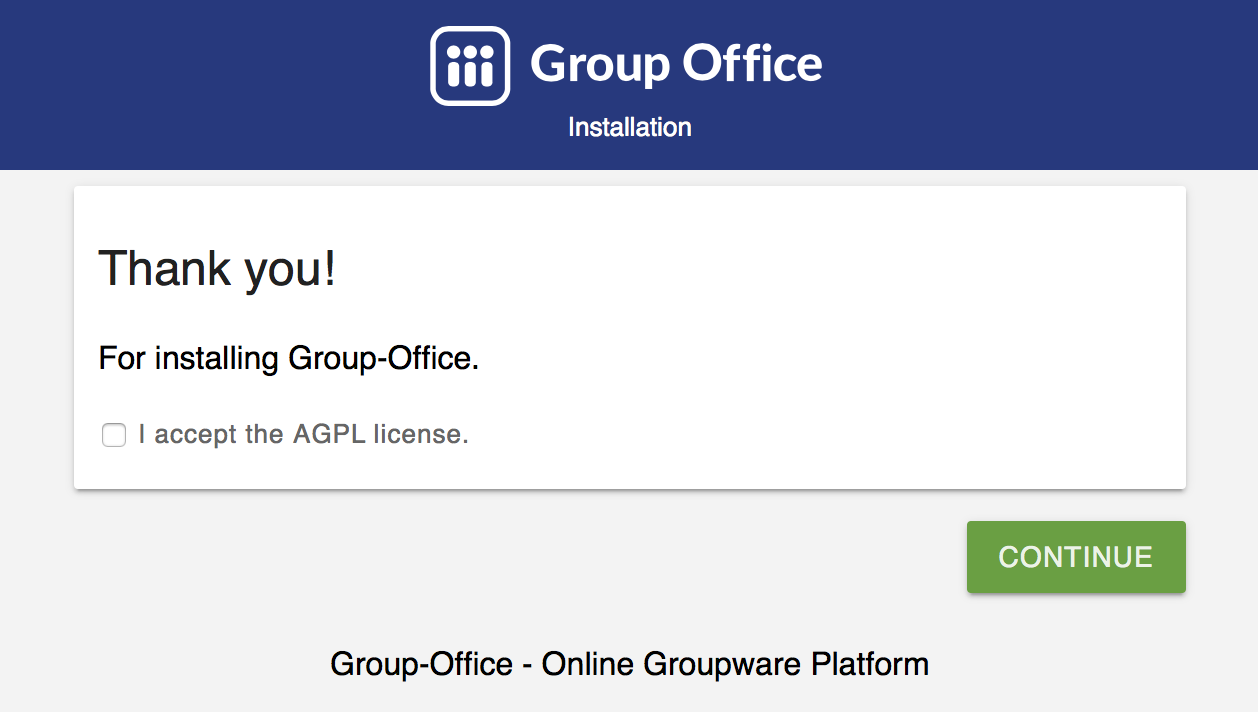
The Group-Office installer
Follow the instructions on screen and enjoy Group-Office!
Mailserver
You can also use Group-Office as a complete e-mail platform. It’s based on:
At the moment this is only possible with the Debian / Ubuntu packages.
When Group-Office is already installed you can run:
apt-get install groupoffice-mailserver
When this command is finished login to Group-Office as admin and install the “E-mail domains” module. In this module you can manage the domains, mailboxes and aliases.

Manage e-mail domains in Group-Office
TLS / SSL
It’s required to install SSL certificates for your mailserver to operate properly. So obtain an SSL certificate and take these steps:
Configure Dovecot IMAP in file /etc/dovecot/conf.d/10-ssl.conf:
ssl = yes
ssl_cert = </etc/ssl/group-office.com/certificate.crt
ssl_key = </etc/ssl/group-office.com/certificate.key
ssl_ca = </etc/ssl/group-office.com/cabundle.crt
Restart dovecot:
invoke-rc.d dovecot restart
Configure Postfix SMTP with these commands:
postconf -e 'smtpd_tls_cert_file = /etc/ssl/group-office.com/certificate.crt'
postconf -e 'smtpd_tls_key_file = /etc/ssl/group-office.com/certificate.key'
postconf -e 'smtpd_tls_CAfile = /etc/ssl/group-office.com/cabundle.crt'
Restart postfix:
invoke-rc.d postfix restart
Anti spam / virus
The package above installs the bare minimum so you can be free to configure your system in your own way. But for your convenience we’ve also prepared an anti spam and anti virus solution based on:
To install take these steps:
Add the rspamd repository because the official Debian repositories contain outdated versions:
apt-get install -y lsb-release wget # optional
CODENAME=`lsb_release -c -s`
wget -O- https://rspamd.com/apt-stable/gpg.key | apt-key add -
echo "deb [arch=amd64] http://rspamd.com/apt-stable/ $CODENAME main" > /etc/apt/sources.list.d/rspamd.list
echo "deb-src [arch=amd64] http://rspamd.com/apt-stable/ $CODENAME main" >> /etc/apt/sources.list.d/rspamd.list
Update APT:
apt-get update
Install groupoffice-mailserver-antispam:
apt-get install groupoffice-mailserver-antispam
Run the rspamd config wizard:
rspamadm configwizard
Test if the spam filter works by sending a GTUBE message
Test if the anti virus works by sending an EICAR test file
Checkout the rspamd Web GUI at http://yourserver/rspamd/
Multi Instance
It’s possible to host multiple instances of Group Office on one server. After installing Group Office via the Debian packages or Docker you do the following to enable it:
Make sure the main install database user has permissions to create databases by running the following SQL:
GRANT ALL PRIVILEGES ON *.* TO 'groupoffice'@'%' REQUIRE NONE WITH GRANT OPTION MAX_QUERIES_PER_HOUR 0 MAX_CONNECTIONS_PER_HOUR 0 MAX_UPDATES_PER_HOUR 0 MAX_USER_CONNECTIONS 0;
Create “multi_instance” config folder:
mkdir /etc/groupoffice/multi_instance && chown www-data:www-data /etc/groupoffice/multi_instance
Create “multi_instance” data folder:
mkdir /var/lib/groupoffice/multi_instance && chown www-data:www-data /var/lib/groupoffice/multi_instance
Login as administrator into the main Group Office instance that will manage the other instances and install the “Multi Instance” module from the “Community” package.