Building a server module
In this tutorial we’ll show you how to build a Group Office module. As an example we’re going to build a Music module.

Group Office is a JMAP server API and a webclient. We’ll start with implementing the JMAP server API.
If you haven’t got your development environment set up than please do this first by following this tutorial:
https://github.com/Intermesh/docker-groupoffice-development
Required software
To follow this tutorial you need the following software installed:
Code standards
When writing code we following standards:
- Use tabs to indent code
- Use braces with all structures
- Don’t use ?> close tag at the end of class files
- One file per class.
- YAGNI
Naming conventions
| Properties | lowerCamelCase |
| Methods | lowerCamelCase |
| Constants | UPPER_UNDERSCORED |
| Database tables | lower_underscored (For windows compatibility) |
| Namespaces | lower_underscored |
Server module
The code for the module is already present in Group Office. So I suggest you move that away for reference and recreate it by following this tutorial.
The server modules are created in the following path:
"go/modules/<PACKAGE>/<MODULE>"
The package is a group of modules that belong to each other. It is used to group modules per type or per customer.
So our address book module will be created in:
"go/modules/community/music"
Database
Start with creating the database tables. The tables would be prefixed with the module name. For example “music_artist”.
Create the tables by importing this SQL into your database:
CREATE TABLE `music_album` (
  `id` int(11) NOT NULL,
  `artistId` int(11) NOT NULL,
  `name` varchar(190) COLLATE utf8mb4_unicode_ci NOT NULL,
  `releaseDate` date NOT NULL,
  `genreId` int(11) NOT NULL
) ENGINE=InnoDB DEFAULT CHARSET=utf8mb4 COLLATE=utf8mb4_unicode_ci;

CREATE TABLE `music_artist` (
  `id` int(11) NOT NULL,
  `name` varchar(190) COLLATE utf8mb4_unicode_ci NOT NULL,
  `photo` binary(40) DEFAULT NULL,
  `createdAt` datetime NOT NULL,
  `modifiedAt` datetime NOT NULL,
  `createdBy` int(11) NOT NULL,
  `modifiedBy` int(11) NOT NULL
) ENGINE=InnoDB DEFAULT CHARSET=utf8mb4 COLLATE=utf8mb4_unicode_ci;


CREATE TABLE `music_genre` (
  `id` int(11) NOT NULL,
  `name` varchar(190) COLLATE utf8mb4_unicode_ci NOT NULL
) ENGINE=InnoDB DEFAULT CHARSET=utf8mb4 COLLATE=utf8mb4_unicode_ci;

INSERT INTO `music_genre` (`id`, `name`) VALUES
(1, 'Pop'),
(2, 'Rock'),
(3, 'Blues'),
(4, 'Jazz');


ALTER TABLE `music_album`
  ADD PRIMARY KEY (`id`),
  ADD KEY `artistId` (`artistId`),
  ADD KEY `genreId` (`genreId`);

ALTER TABLE `music_artist`
  ADD PRIMARY KEY (`id`),
  ADD KEY `photo` (`photo`);

ALTER TABLE `music_genre`
  ADD PRIMARY KEY (`id`);


ALTER TABLE `music_album`
  MODIFY `id` int(11) NOT NULL AUTO_INCREMENT, AUTO_INCREMENT=14;

ALTER TABLE `music_artist`
  MODIFY `id` int(11) NOT NULL AUTO_INCREMENT, AUTO_INCREMENT=3;

ALTER TABLE `music_genre`
  MODIFY `id` int(11) NOT NULL AUTO_INCREMENT, AUTO_INCREMENT=5;


ALTER TABLE `music_album`
  ADD CONSTRAINT `music_album_ibfk_1` FOREIGN KEY (`artistId`) REFERENCES `music_artist` (`id`) ON DELETE CASCADE,
  ADD CONSTRAINT `music_album_ibfk_2` FOREIGN KEY (`genreId`) REFERENCES `music_genre` (`id`);

ALTER TABLE `music_artist`
  ADD CONSTRAINT `music_artist_ibfk_1` FOREIGN KEY (`photo`) REFERENCES `core_blob` (`id`);
Database rules
- Group Office uses singular names for the table. So it must be “music_artist” and not “music_artists
- Table names are always lowercase with underscores (Windows compatible).
- column names are lowerCamelCase.
- Date’s use column type “DATE”.
- Date and time columns use type “DATETIME”.
- Foreign key’s must be defined for relationships. Think about cascading delete set to null or restrict.
- We often choose a varchar to be 190 characters so it can be indexed on all database versions.
- Columns modifiedBy (int), createdBy (int), createdAt (DATETIME), modifiedAt (DATETIME) are automatically set by Group Office.
Code generator
We’ve written a command line tool to make it easy to start with a new module. When you’ve created your database tables then you can run it to generate the models and controllers. First login to Group Office as administrator and install the “Development tools” module.
Then you can run it at any time from within the project directory to add new model properties, models or controllers:
docker-compose exec groupoffice php /usr/local/share/groupoffice/cli.php community/dev/Module/init --package=community --name=music
the command should output:
Generating model/Album.php
Updating go\modules\community\music\model\Album with new properties
Generating model/Artist.php
Updating go\modules\community\music\model\Artist with new properties
Generating model/Genre.php
Updating go\modules\community\music\model\Genre with new properties
Done
This will generate:
- Module.php, required for every module. Contains Author info and controls the installation.
- views/extjs3, The webclient code. We’ll get to that later.
- language/en.php, translation file.
- install/install.sql, uninstall.sql and updates.php, these files handle installation and upgrading.
- model, this folder contains all models.
Note
Docker runs as root and will write these files as root.
So you need to change the ownership to your own user by running:
sudo chown -R $USER:$USER src/groupoffice/www/go/modules/community/music
Property and Entity models
By default, the tool generates only “Property” models. It doesn’t know which models should be “Entities”. An entity can be modified by the API directly and a property is only modifiable through an entity. For example an email address of a contact is a property of the entity contact.
So the first step is to change some properties into JMAP entities. In this example Artist and Genre are entities.
So in model/Artist.php change:
use go\core\orm\Property;

class Artist extends Property {
Into:
use go\core\jmap\Entity;

class Artist extends Entity {
Do the same for Genre.
Now run the code generator tool again and it will generate controllers for these entities. It should output:
Generating controller/Artist.php
Generating controller/Genre.php
Done
Relations
Now we must define relations in the models. Add the “albums” relation to the artist by creating a new public property:
/**
 * The albums created by the artist
 *
 * @var Album[]
 */
 public $albums;
And then change the mapping:
protected static function defineMapping() {
    return parent::defineMapping()
            ->addTable("music_artist")
            ->addRelation('albums', Album::class, ['id' => 'artistId']);
}
Note
When making changes to the database, model properties or mappings, you must run “install/upgrade.php” to rebuild the cache.
Connecting to the API with POSTMan
Using the API with POSTman is strictly necessary but it’s nice to get a feel on how the backend API works.
Now we’ve got our basic API in place. We should first install this module at Start Menu -> Modules.
Install POSTman or another tool to make API requests.
Authenticate
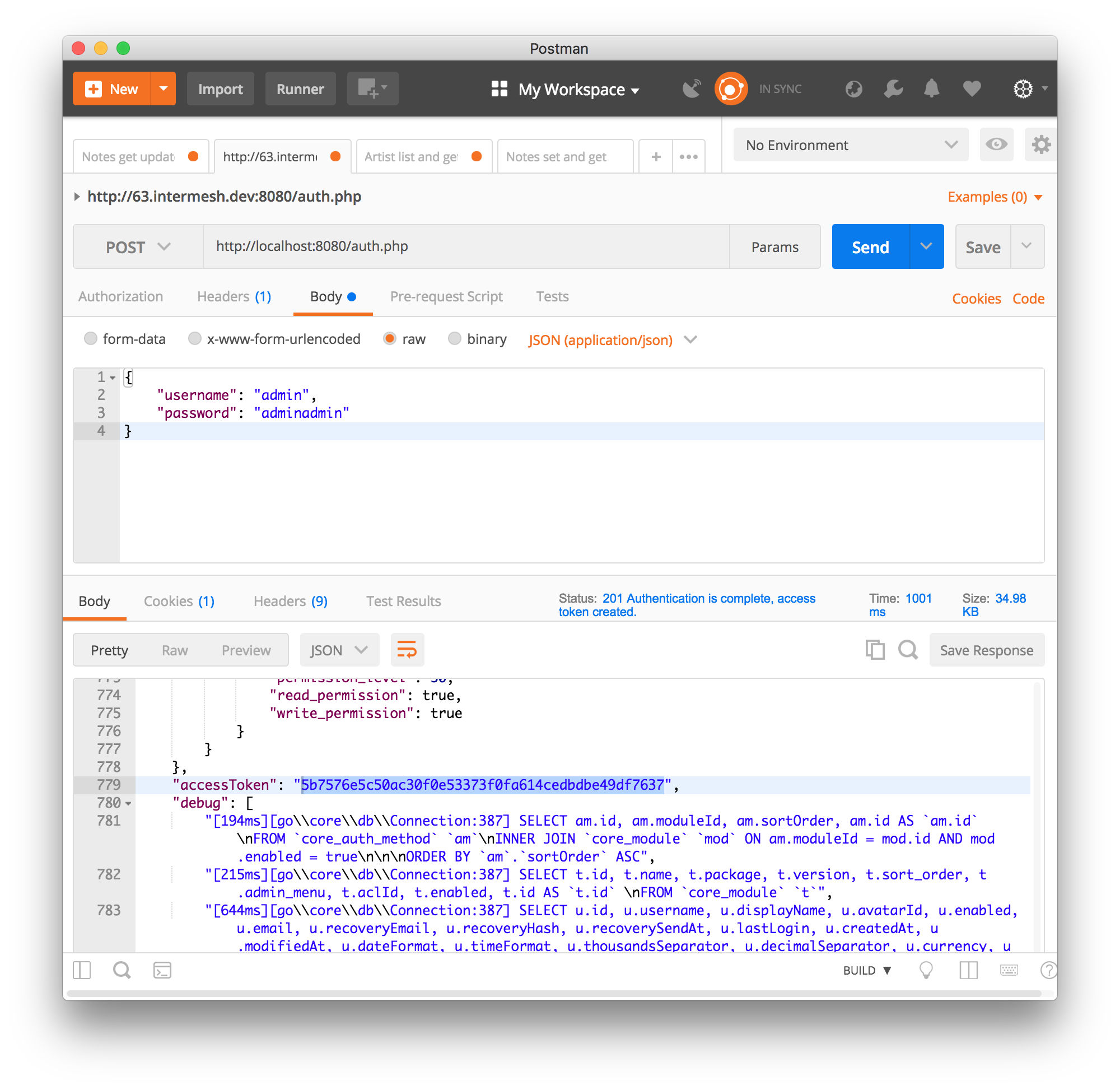
Send a POST request to:
http://localhost/auth.php
use content type:
application/json"
And the following request body:
{
   "username": "admin",
   "password": "adminadmin"
}
When successfully logged on you should get a response with status:
201 Authentication is complete, access token created
Find the “accessToken” property and save it. From now on you can do API requests to:
http://localhost/auth.php
You must set the access token as a header on each request:
Auhorization: Bearer 5b7576e5c50ac30f0e53373f0fa614cedbdbe49df7637
Content-Type: application/json
Create an artist
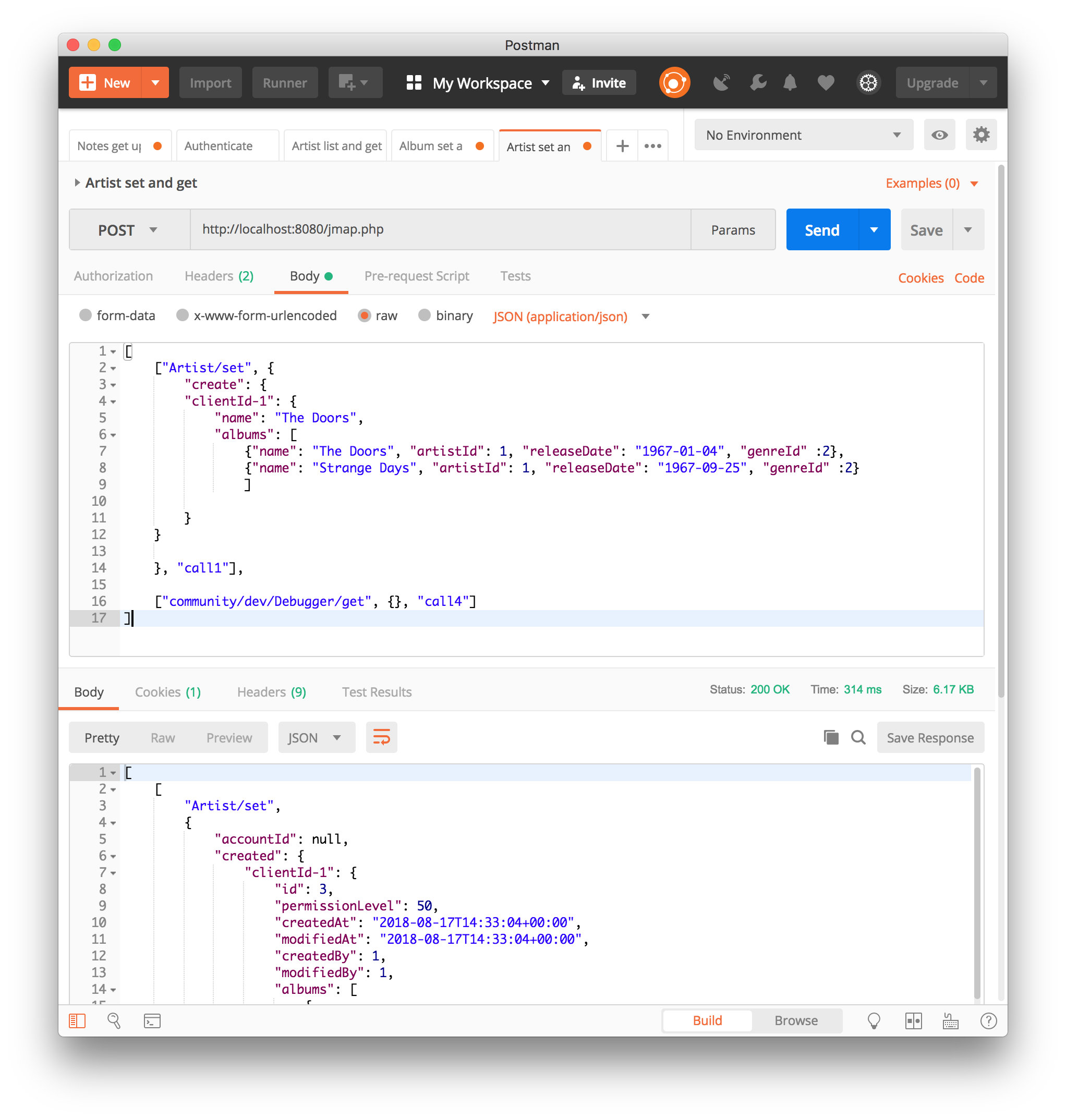
To create an artst POST this JSON body:
[
  ["Artist/set", {
    "create": {
    "clientId-1": {
      "name": "The Doors",
      "albums": [
        {"name": "The Doors", "artistId": 1, "releaseDate": "1967-01-04", "genreId" :2},
        {"name": "Strange Days", "artistId": 1, "releaseDate": "1967-09-25", "genreId" :2}
        ]

    }
  }

  }, "call1"],

  ["community/dev/Debugger/get", {}, "call4"]
]
Query artists
The Artist/query method is used to retreive an ordered / filtered list of id’s for displaying a list of artists. We’ll do a direct followup call to “Artist/get” to retreive the full artist data as well. We can Use the special “#” parameter to use a previous query result as parameter. Read more on this at the JMAP website.
POST the following to make the request:
[
["Artist/query", {}, "call1"],
["Artist/get",{
  "#ids": {
    "resultOf": "call1",
    "path": "/ids"
  }
},"call2"],
["community/dev/Debugger/get", {}, "call3"]
]

Query filters
When doing “Artist/query” requests, it’s possible to filter the results. You can pass for example:
{"filter": {"q" : "Foo"}}
We generally use the “q” filter for a quick search query. We also want to filter aritsts by their album genres. We can implement this in our “Artist” entity in by overriding the “filter” method:
/**
 * Defines JMAP filters
 *
 * Adds the 'genres' filter which can be an array of genre id's.
 *
 * @link https://jmap.io/spec-core.html#/query
 *
 * @return Filters
 */
protected static function defineFilters() {
        return parent::defineFilters()
                                        ->add('genres', function (Query $query, $value, array $filter) {
                                                if(!empty($value)) {
                                                        $query->join('music_album', 'album', 'album.artistId = artist.id')
                                                                ->groupBy(['artist.id']) // group the results by id to filter out duplicates because of the join
                                                                ->where(['album.genreId' => $value]);
                                                }
                                        });
}
JMAP API protocol
This are some basic request examples. Read more on https://jmap.io about the protocol.
Module installation
When you’re done with the module you should export your finished database into “go/modules/community/music/install/install.sql”
Put all ‘DROP TABLE x’ commands in “go/modules/community/music/install/uninstall.sql”
When the database changes later on you can put upgrade queries and php functions in install/updates.php:
$updates["201808161606"[] = "ALTER TABLE ...";
$updates["201808161606"[] = function() {
  //some migration code here
}
The timestamp is important. Use YYYYMMDDHHII. All the module upgrades will be mixed together and put into chronological order so dependant modules won’t break.
The end
Now you’re done with the server code of the module. Now it’s time to move on and build the web client!